Technical Troubleshooting
You can proceed with below BTS if the weather is good. Otherwise, you may try again later.
STEP 1
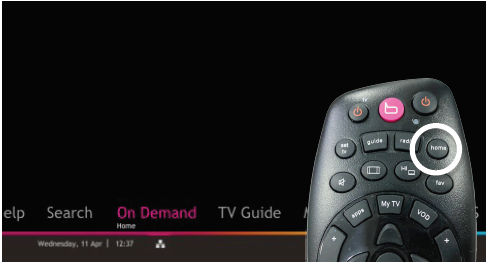
On your remote, press the HOME button and the home menu will be displayed at the bottom of your screen.
STEP 2
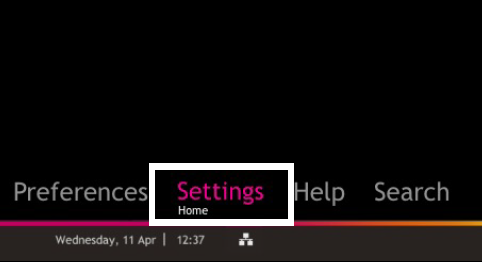
Navigate to SETTINGS and press OK
STEP 3
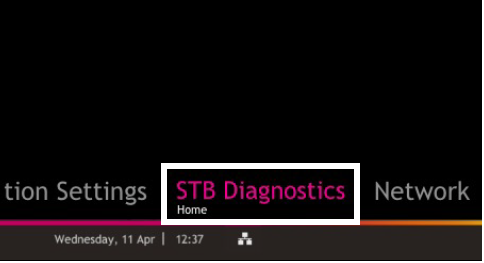
Navigate to STB DIAGNOSTICS and press OK
STEP 4
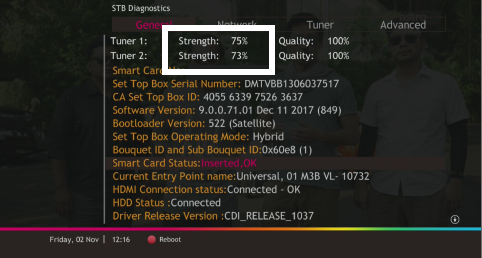
Refer to the signal strength % shown on the top left of your screen.
If it is 65% or higher, please take the screenshot and submit the feedback form.
If it is below 65%, please go to STEP 5.
STEP 5
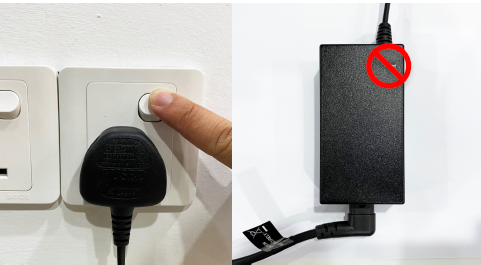
Switch off the power for your box and make sure that the adapter power light is off.
STEP 6
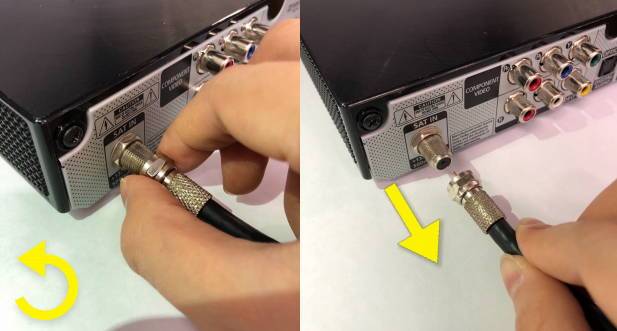
Unscrew the satellite cable from the box and pull it out.
STEP 7
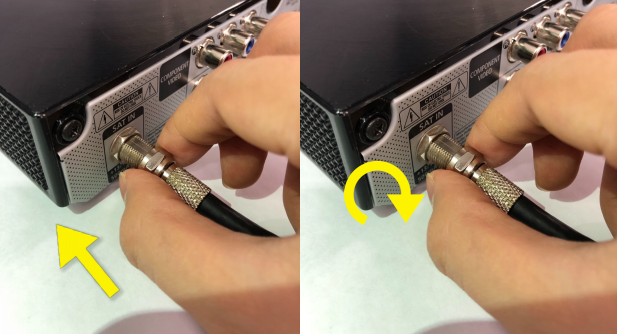
Plug the satellite cable back into the box and screw it back securely.
STEP 8
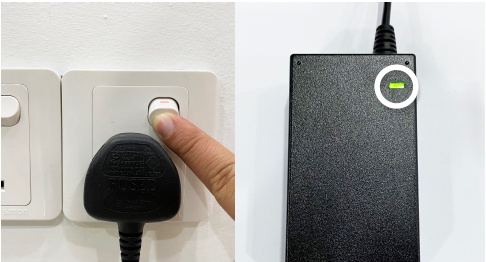
Switch on the power for your box and make sure that the adapter power light is on. Please wait for 5 minutes.
STEP 9
Turn on your box. You should no longer be experiencing this issue.
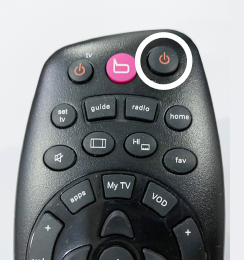
If issue persist, please contact us via WhatsApp and attach a picture of your General tab of the STB Diagnostics for assistance.
Centralized Dish
If issue persist under a centralized satellite dish, please refer to your respective Building Management before contacting our agents.
STEP 1
Switch off the power for your box and make sure that the adapter's power light is off.
STEP 2
Locate the Smartcard at the front or right side and gently pull it out. Make sure that the adapter's power light is off.
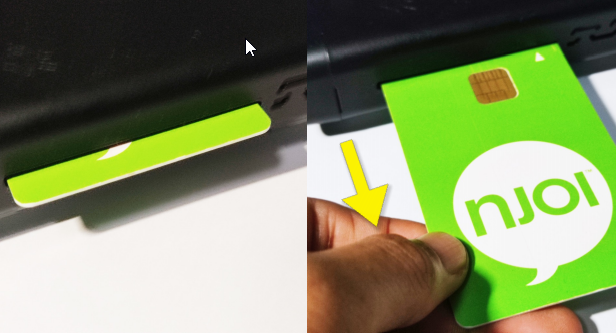
STEP 3
Wipe the Smartcard's gold chip clean using a dry soft cloth.
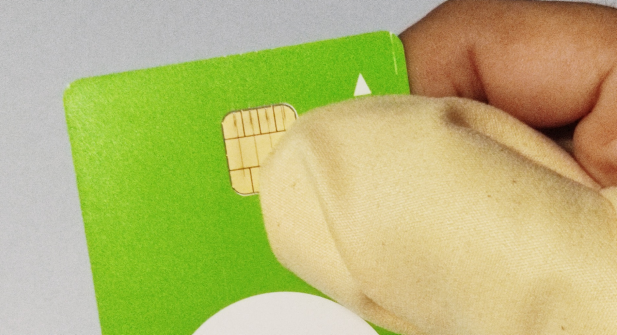
STEP 4
Make sure the gold chip is facing upwards and reinsert it all the way in.
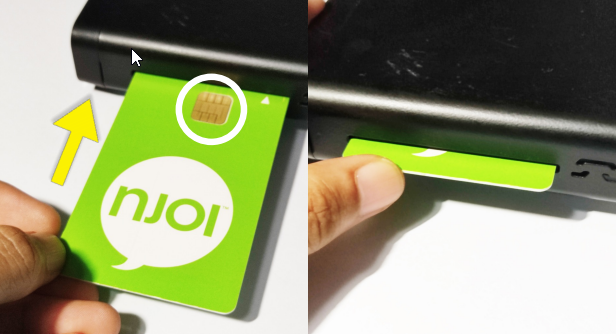
STEP 5
Switch on the power for your box and make sure that the adapter's power light is on. Please wait for 5 minutes.
STEP 6
Turn on your box. You should no longer be experiencing this problem.
If issue persist, please submit your feedback form and attach a picture of your smart card number for assistance.
STEP 1
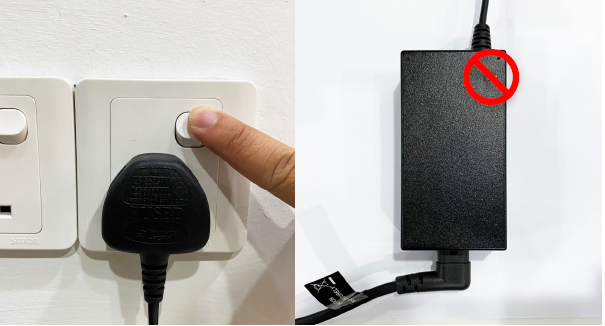
Switch off the power for your box and make sure that the adapter's power light is off.
STEP 2
Locate the Smartcard at the front or right side and gently pull it out. Make sure that the adapter's power light is off.
STEP 3
Wipe the Smartcard's gold chip clean using a dry soft cloth.
STEP 4
Make sure the gold chip is facing upwards and reinsert it all the way in.
STEP 5
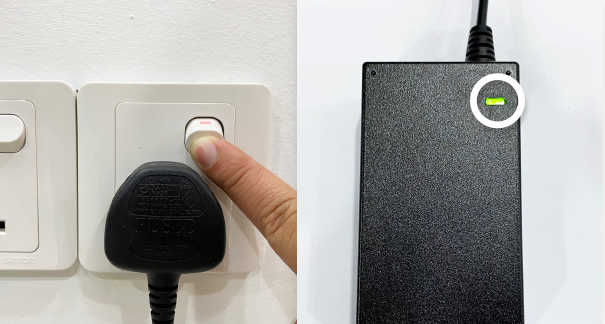
Switch on the power for your box and make sure that the adapter's power light is on. Please wait for 5 minutes.
STEP 6
Turn on your box. You should no longer be experiencing this problem.
If issue persist, please submit your feedback form and attach a picture of your smart card number for assistance.
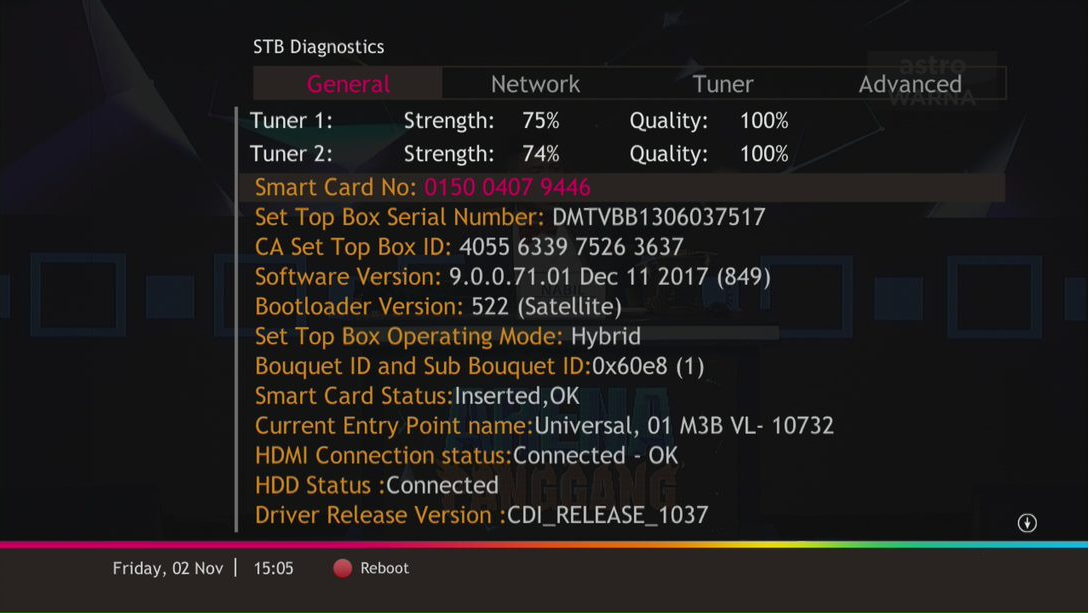
Steps to capture General Tab from STB Diagnostics
STEP 1
On your remote, press the HOME button and the home menu will be displayed at the bottom of your screen.
STEP 2
Navigate to SETTINGS and press OK
STEP 3
Navigate to STB DIAGNOSTICS and press OK
STEP 4
From the General tab, take a a screen capture of this page and attach in feedback form.
STEP 1
Switch off the power for your box and make sure that the adapter's power light is off.
STEP 2
Locate the Smartcard at the front or right side and gently pull it out. Make sure that the adapter's power light is off.
STEP 3
Wipe the Smartcard's gold chip clean using a dry soft cloth.
STEP 4
Make sure the gold chip is facing upwards and reinsert it all the way in.
STEP 5
Switch on the power for your box and make sure that the adapter's power light is on. Please wait for 5 minutes.
STEP 6
Turn on your box. You should no longer be experiencing this problem.
If issue persist, please submit your feedback form and attach a picture of your smart card number for assistance.
STEP 1
Check on the adapter's power light.
If the adapter's power light is ON, please refer to Blank Screen troubleshooting steps here.
Otherwise, if the adapter's power light is OFF, switch off the power of your box.
STEP 2
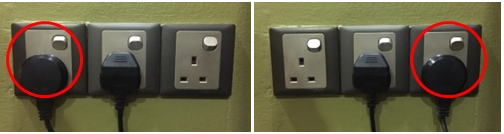
Ensure power cable is connected tightly. Plug in power cable to different power socket and switch on the plug.
You should no longer be experiencing this problem. If issue remains, proceed to STEP 3.
STEP 3
Try a different power socket to connect the equipment. Turn on the power socket and check the adapter's power light.
If there is no light on your power adaptor's, please submit your feedback form and attach a picture of your smart card number for assistance.
Please indicate in the form if there is lightning strike/thunderstorm/power trip happened earlier.
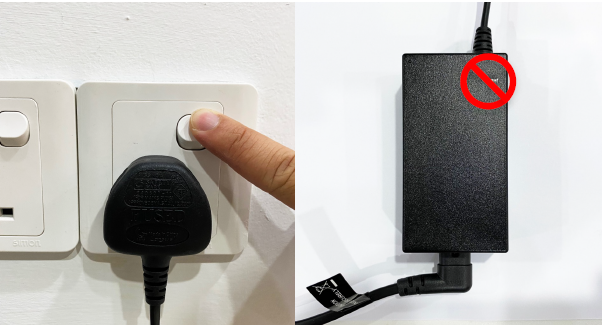
STEP 1
Switch off the power for your box and make sure that the adapter's power light is off.
STEP 2A
Unplug the HDMI cable from your box and plug it back in securely. Do ensure select the correct TV input.
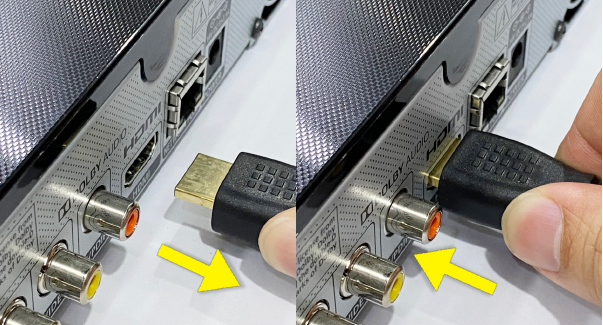
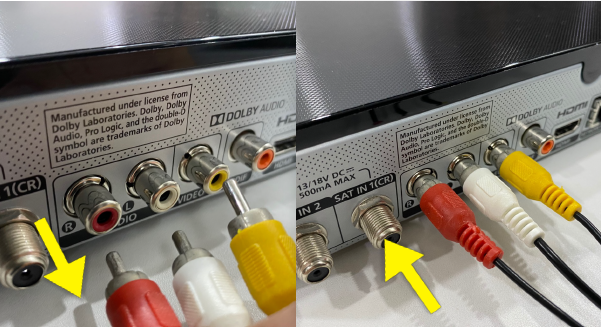
STEP 2B
If you are connecting using RCA cable, please unplug the RCA cable from your box and plug it back in securely.
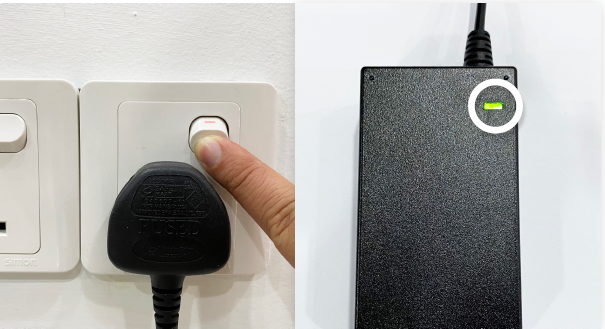
STEP 3
Switch on the power for your box and make sure that the adapter's power light is on. Please wait for 5 minutes.
STEP 4
Turn on your box. You should no longer be experiencing this problem. If issue remain, replace to another HDMI cable.
STEP 5
If no improvement seen, please submit your feedback form and attach a picture of your smart card number for assistance.
STEP 1
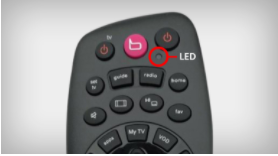
Try to change channels on your Astro remote.
INDICATOR: LED blinking 3 times / NO LED blink
SOLUTION: Replace new battery
Proceed to STEP 2.
INDICATOR: LED blinking 1 time
Confirm it's not your Astro remote faulty, let's proceed to STEP 3.
STEP 2
If issue remain after the battery replacement, this might be due to your Astro remote faulty.
You may walk-in to our nearest Customer Service Center for the replacement or purchase it directly from Astro Go Shop here.
STEP 3
You need to refresh the box setting by initiate manually from box front panel.
Refer to Refresh Box setting guide here.